06
업무 자동화 ① 엑셀 (2) — 서식을 입히고 함수로 묶는다
앞 강의의 표는 나오긴 하지만 밋밋하다. 네 줄만 더하면 사람이 열어볼 만한 문서가 된다. 그리고 폴더 이름만 바꿔 다음 달에 다시 돌릴 수 있게 함수로 묶는다.
앞 강의에서 폴더를 훑어 엑셀 표를 만들었다. 표는 나오지만 밋밋하다. 제목 줄이 데이터와 구분이 안 되고, 열이 좁아 글자가 잘려 보인다.
이번 강의는 두 가지다. 서식을 입히는 것과 함수로 묶는 것.
파일은 계속 ai-course 폴더에 넣는다. 이번 강의는 61번부터다.
1. 서식을 입힌다 — 여기서 「있어 보인다」
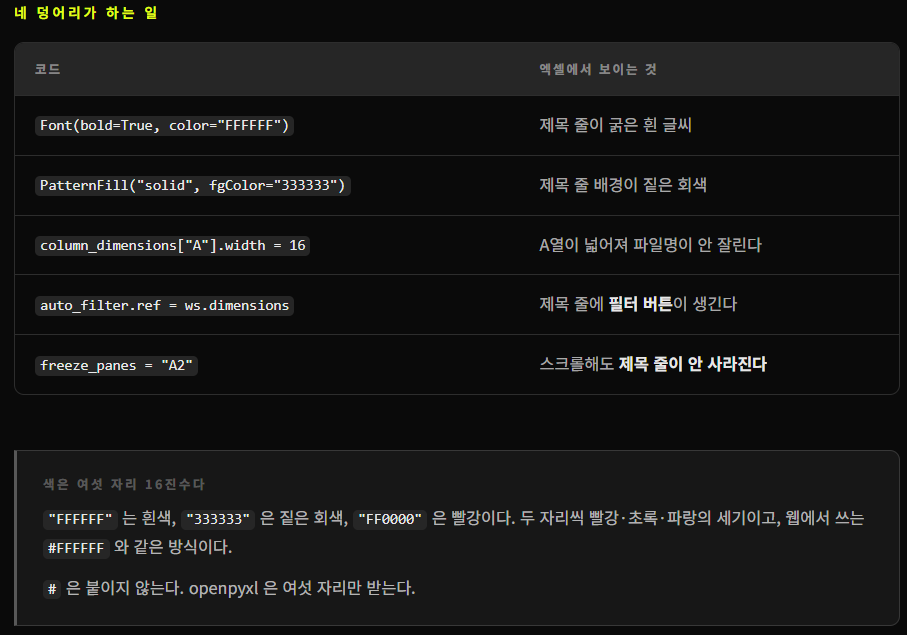
네 가지만 더하면 사람이 쓸 만한 문서가 된다. 앞부분은 앞 강의와 같고, wb.save 앞에 네 덩어리가 들어갔다.
import os
import glob
from openpyxl import Workbook
from openpyxl.styles import Font, PatternFill, Alignment

rows = []
for path in sorted(glob.glob("서류/*.txt")):
    with open(path, encoding="utf-8") as f:
        text = f.read()

    rows.append({
        "파일명": os.path.basename(path),
        "크기KB": round(os.path.getsize(path) / 1024, 1),
        "글자수": len(text),
        "첫문장": text.split("\n")[1][:20],
    })

HEADERS = ["파일명", "크기KB", "글자수", "첫문장"]

wb = Workbook()
ws = wb.active
ws.title = "서류 현황"

ws.append(HEADERS)
for r in rows:
    ws.append([r[h] for h in HEADERS])

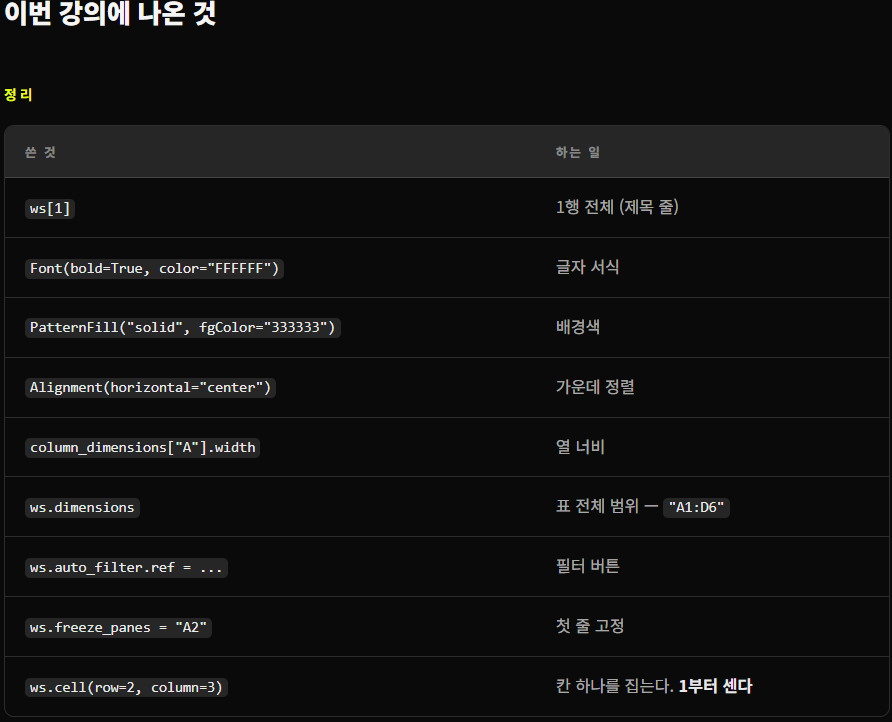
# 1. 제목 줄을 눈에 띄게 - ws[1] 은 1행 전체다
for cell in ws[1]:
    cell.font = Font(bold=True, color="FFFFFF")             # 굵은 흰 글씨
    cell.fill = PatternFill("solid", fgColor="333333")      # 짙은 회색 배경
    cell.alignment = Alignment(horizontal="center")         # 가운데 정렬

# 2. 열 너비 - 안 하면 글자가 잘려 보인다
for col, width in zip("ABCD", (16, 10, 10, 26)):
    ws.column_dimensions[col].width = width

# 3. 필터 버튼 - ws.dimensions 는 "A1:D6" 처럼 표 전체 범위다
ws.auto_filter.ref = ws.dimensions

# 4. 첫 줄 고정 - A2 위쪽이 얼어붙는다. 스크롤해도 제목이 보인다
ws.freeze_panes = "A2"

wb.save("서류현황.xlsx")

print(ws.dimensions)
print(ws.title)

A1:D6 은 제목 줄 1행 + 문서 5행이다. 이 문자열을 그대로 auto_filter.ref 에 넣었으니 범위를 손으로 셀 필요가 없다. 엑셀에서 열어보면 앞 강의와 확실히 다르다.
2. 재사용할 수 있게 함수로
한 번 쓰고 버릴 코드가 아니다. 폴더 이름만 바꿔 다음 달에 다시 돌릴 수 있게 묶는다.
import os
import glob
from openpyxl import Workbook
from openpyxl.styles import Font, PatternFill, Alignment


def 폴더현황_엑셀(folder, out_path="현황.xlsx"):
    """폴더 안 txt 를 훑어 서식 갖춘 엑셀 파일로 만든다."""
    headers = ["파일명", "크기KB", "글자수", "첫문장"]

    rows = []
    for path in sorted(glob.glob(f"{folder}/*.txt")):
        try:
            with open(path, encoding="utf-8") as f:
                text = f.read()
        except UnicodeDecodeError:
            print(f"[건너뜀] {path} - utf-8 이 아니다")
            continue

        lines = text.split("\n")
        rows.append({
            "파일명": os.path.basename(path),
            "크기KB": round(os.path.getsize(path) / 1024, 1),
            "글자수": len(text),
            # 줄이 하나뿐인 파일에 lines[1] 을 쓰면 IndexError 가 난다
            "첫문장": (lines[1] if len(lines) > 1 else lines[0])[:20],
        })

    if not rows:
        print(f"[경고] '{folder}' 에서 txt 를 못 찾았다.")
        return None

    wb = Workbook()
    ws = wb.active
    ws.title = "현황"
    ws.append(headers)
    for r in rows:
        ws.append([r[h] for h in headers])

    for cell in ws[1]:
        cell.font = Font(bold=True, color="FFFFFF")
        cell.fill = PatternFill("solid", fgColor="333333")
        cell.alignment = Alignment(horizontal="center")

    for col, width in zip("ABCD", (16, 10, 10, 26)):
        ws.column_dimensions[col].width = width

    ws.auto_filter.ref = ws.dimensions
    ws.freeze_panes = "A2"
    wb.save(out_path)

    print(f"{len(rows)}건을 {out_path} 에 저장했다")
    return out_path


폴더현황_엑셀("서류")
폴더현황_엑셀("없는폴더")


'AI' 카테고리의 다른 글
| 0810 디코드랩 정리(AI Engineering 05) (0) | 2026.08.11 |
|---|---|
| 0810 디코드랩 정리(AI Engineering 04) (0) | 2026.08.10 |
| 0810 디코드랩 정리(AI Engineering 03) (0) | 2026.08.10 |
| 0810 디코드랩 정리(AI Engineering 02) (0) | 2026.08.10 |
| 0810 디코드랩 정리(AI Engineering 01) (0) | 2026.08.10 |